Modern driving demands seamless connectivity. Whether you rely on real-time traffic updates via Waze and Google Maps, want effortless access to Spotify playlists, or need hands-free communication, smartphone integration has become the centerpiece of the automotive cockpit. While recent automotive industry trends show manufacturers making phone projection standard equipment, millions of BMW vehicles on the road are still held back by legacy infotainment hardware or restrictive software configurations.
Fortunately, you do not need to buy a brand-new vehicle to enjoy cutting-edge technology. With the right OEM retrofit or display enhancement, you can transform your cabin into a modern digital powerhouse. In this guide, we explore how to complete a proper BMW iDrive CarPlay Android Auto infotainment screen upgrade, comparing hardware retrofits, display swaps, and software activations.
Understanding Your BMW iDrive Generations
Before planning any upgrade, it is vital to know which generation of iDrive resides in your dashboard. BMW has continuously evolved its infotainment platform over the past two decades:
- CIC (Car Information Computer, ~2008–2012): Features a classic horizontal-bar menu, lower-resolution display, and no native smartphone projection capabilities.
- NBT (Next Big Thing / iDrive 4, ~2012–2016): Introduced enhanced 3D navigation, faster processing, and higher-resolution screens, but still lacks factory Apple CarPlay and Android Auto.
- NBT EVO (ID5 / ID6, ~2016–2019): Features dynamic tile-based interfaces and supports factory wireless Apple CarPlay, though often restricted to a frustrating split-screen format from the factory.
- MGU (iDrive 7 / Live Cockpit, 2019+): The premier modern system with dual-screen capability, digital cluster synergy, and official native support for both wireless Apple CarPlay and Android Auto.
Regardless of which platform your vehicle currently runs, viable upgrade pathways exist to bring modern smartphone integration directly to your dashboard.
1. Upgrade to a High-Definition 10.25-Inch Screen
Many BMW 1, 2, 3, and 4 Series models left the factory equipped with base-level 6.5-inch or 8.8-inch screens bordered by thick plastic bezels. Swapping this out for a panoramic high-definition display dramatically modernizes the interior aesthetic while vastly improving map readability.
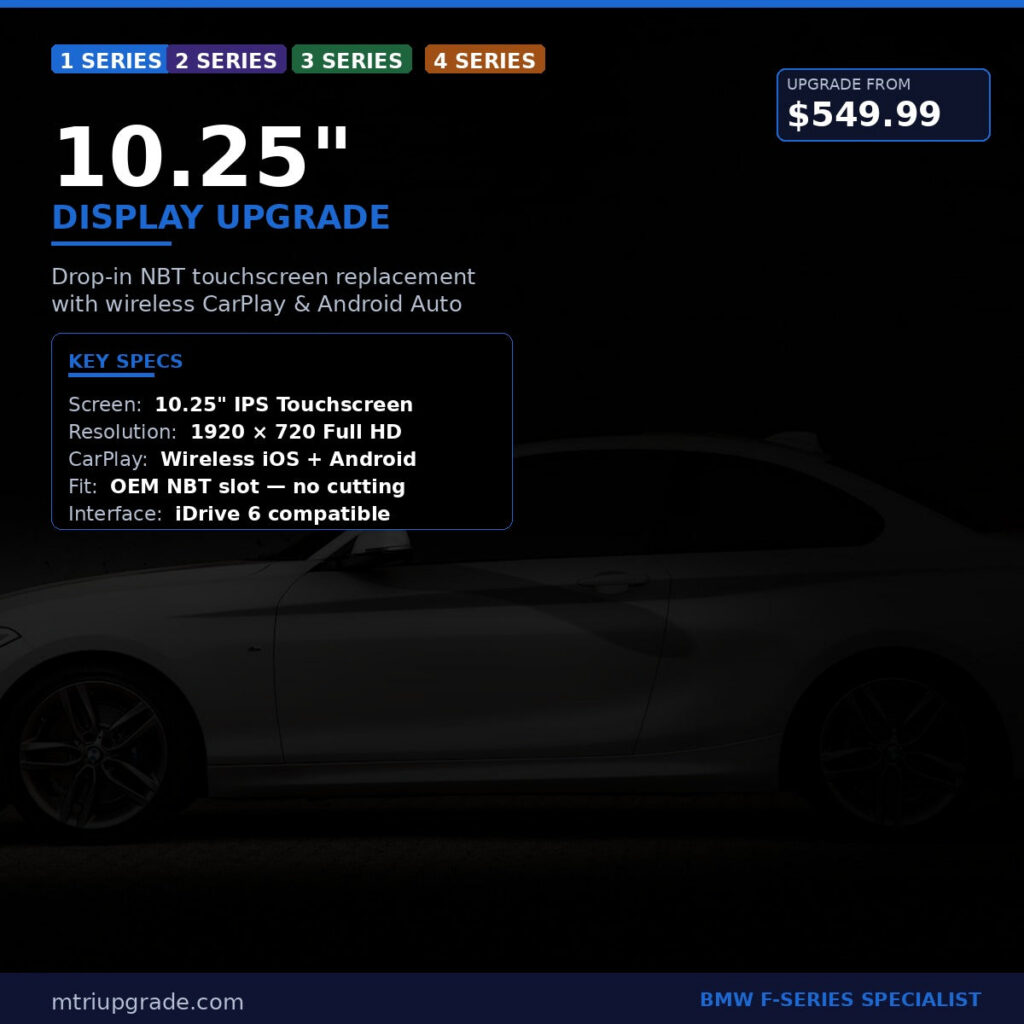
Installing a BMW NBT 10.25 Inch Display Upgrade replaces cramped factory visuals with crisp, vibrant imagery. When combined with an updated head unit or multimedia module, the extra screen real estate allows navigation prompts and media controls to sit comfortably side-by-side without straining your eyes while driving.
2. Step Up to NBT EVO with Native Wireless CarPlay
If your BMW came equipped with an early NBT or basic entry-level head unit, you might feel restricted by slow interfaces and dated graphics. The most reliable, OEM-grade solution for F-Series vehicles is retrofitting an NBT EVO unit.
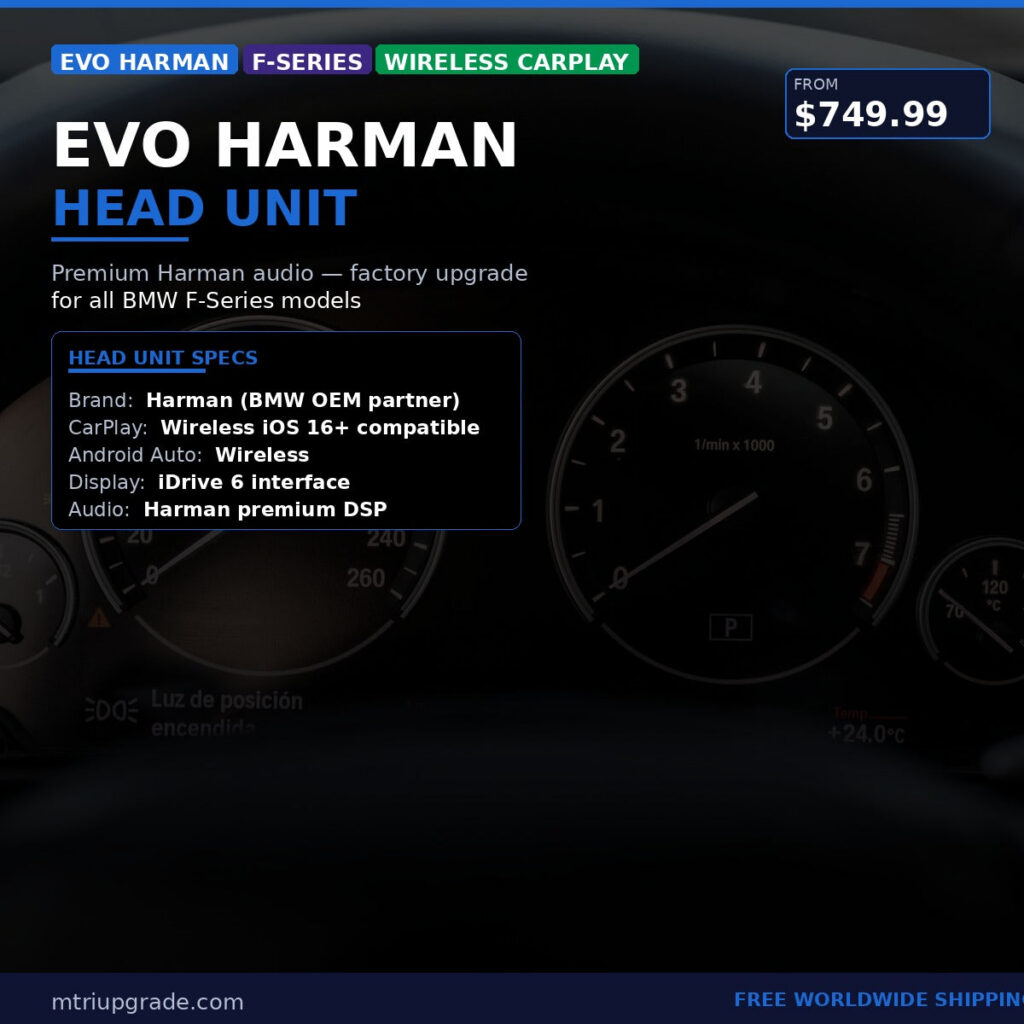
A genuine BMW Evo Harman Head Unit for F-Series with Wireless CarPlay delivers factory stability that aftermarket display screen modules cannot replicate. By preserving complete integration with your factory iDrive controller, steering wheel buttons, and parking sensors, this retrofit provides ultra-smooth performance, ID6 tile visuals, and reliable wireless Apple CarPlay connectivity.
3. Unlock CarPlay Full Screen Mode
Drivers who already have an NBT EVO ID5 or ID6 system frequently voice one major complaint: the default split-screen layout. By default, BMW reserved the right-hand third of the display for generic widgets or clock faces, squishing Apple CarPlay into a compact window that feels half-finished.
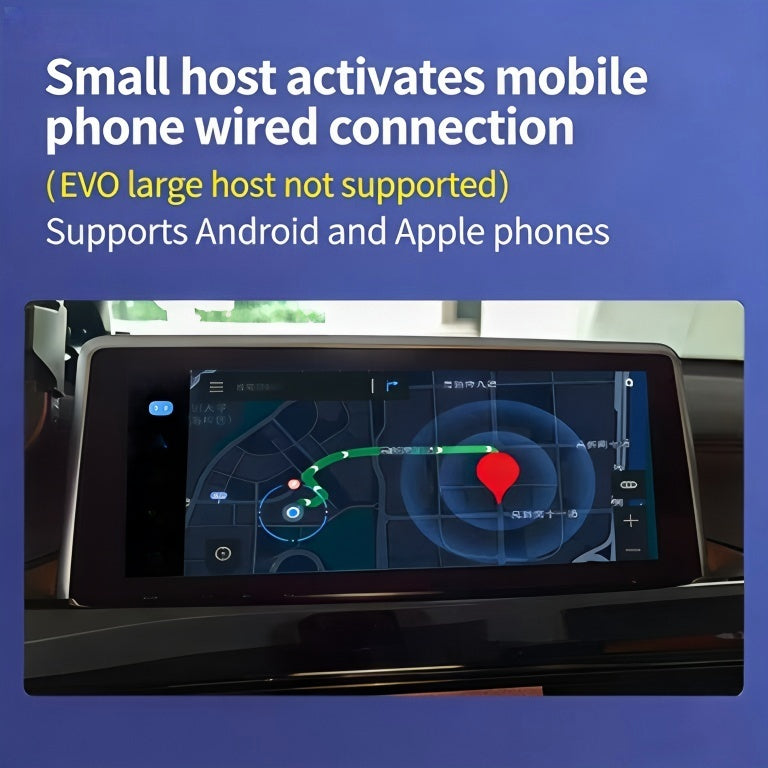
You can unlock the full potential of your display without replacing hardware. Through software coding, our BMW CarPlay Full Screen Activation stretches CarPlay edge-to-edge across the entire screen. This provides widescreen map views, larger app icons, and an authentic modern cockpit feel in just a few minutes.
4. The Pinnacle Upgrade: iDrive 7 (MGU) Integration
For enthusiasts seeking the latest technology platform, retrofitting the iDrive 7 MGU system is the ultimate goal. While earlier generations favored Apple users, iDrive 7 officially brought wireless Android Auto into the BMW ecosystem alongside Apple CarPlay.
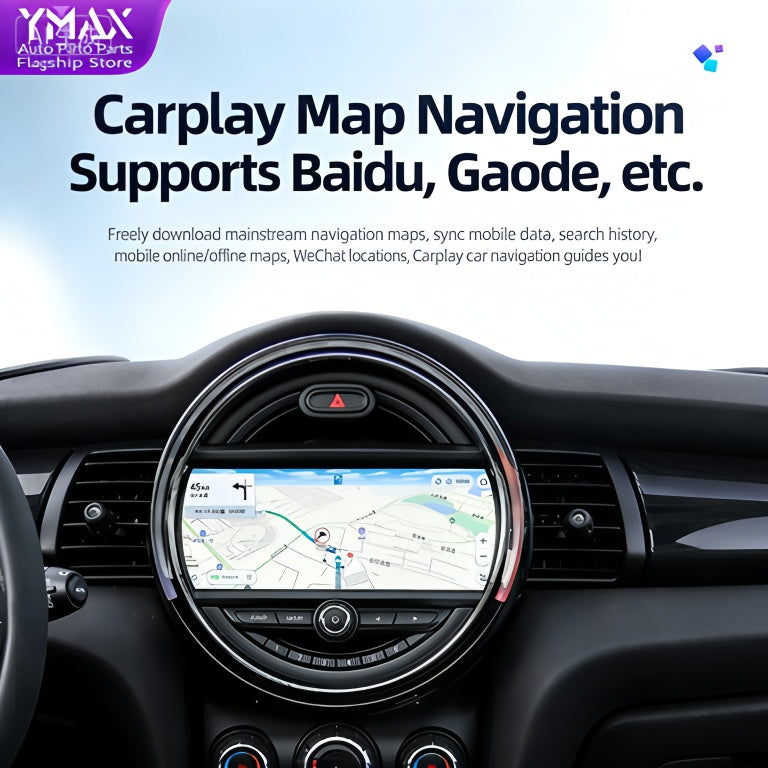
With a comprehensive BMW Apple CarPlay and Android Auto iDrive 7 MGU package, you get high-resolution touch control, lightning-fast transitions, and true dual-platform wireless phone projection. Whether you use an iPhone or a Samsung Galaxy, your navigation, messaging, and audio apps launch automatically the moment you step inside the cabin.
Choosing the Right Upgrade Path: Quick Comparison
| Upgrade Option | Best For | Key Benefit |
|---|---|---|
| Full Screen Activation | Vehicles with existing NBT EVO ID5/ID6 | Zero hardware changes; instant widescreen CarPlay |
| 10.25-Inch Screen Swap | Small 6.5″/8.8″ factory displays | Expanded screen real estate and sharper visual clarity |
| NBT EVO Head Unit | F-Series with older CIC / NBT systems | OEM-grade wireless CarPlay, faster processor, ID6 skin |
| iDrive 7 MGU Retrofit | G-Series or late F-Series modernizers | Simultaneous wireless Apple CarPlay and Android Auto |
Installation and Compatibility Tips
Before ordering your upgrade components, keep these essential tips in mind:
- Check Your Firmware Version: If you are planning a software-only full-screen activation, verify your NBT EVO software level (such as NBTevo_N, O, P, or later) to ensure compatibility.
- Preserve OEM Functions: OEM retrofits ensure your vehicle’s maintenance logs, tire pressure monitoring systems, and driving mode configurations remain fully accessible.
- Ensure Proper Antenna Placement: For any wireless CarPlay or Android Auto conversion, ensure the dedicated Wi-Fi antenna is connected to the back of the head unit to avoid connection drops.
Modernize Your BMW Today
Outdated navigation and missing smartphone apps should never compromise the joy of driving an Ultimate Driving Machine. Whether you need a simple software coding solution, a vibrant panoramic display, or a complete iDrive 7 conversion, OEM retrofits provide the perfect blend of modern functionality and factory reliability.
Ready to upgrade your vehicle’s infotainment system? Explore our comprehensive catalog of OEM parts, displays, and coding packages at our online shop to find the exact setup for your BMW chassis.